
Adding two-factor authentication (2FA) to your website login process definitely won’t make your website hack proof, but it does add one more layer of protection to help keep your data safe. Below is a step-by-step explanation of how to setup 2FA on your website using Wordfence.
- Login to your website as you normally would.
- At the top of your dashboard you will see a yellow banner saying that you need to setup 2FA for your account. 2FA is typically enabled with a 10 day grace period – you will need to complete this process before that deadline. If you fail to do so you will be unable to login to the website. If you are locked out of your website contact us for assistance. We will have to login to your website and reset your access.

- Download the Google Authenticator app on your mobile device – Download iOS version | Download Android version. Setup the app using your Google account.
- Click on the Configure 2FA link in the yellow bar (at the top of the dashboard page).
- You will see the Wordfence 2FA setup page.

- In the Google Authenticator app click on the colourful plus icon at the bottom of the screen. Click on Scan a QR code in the menu that pops up.
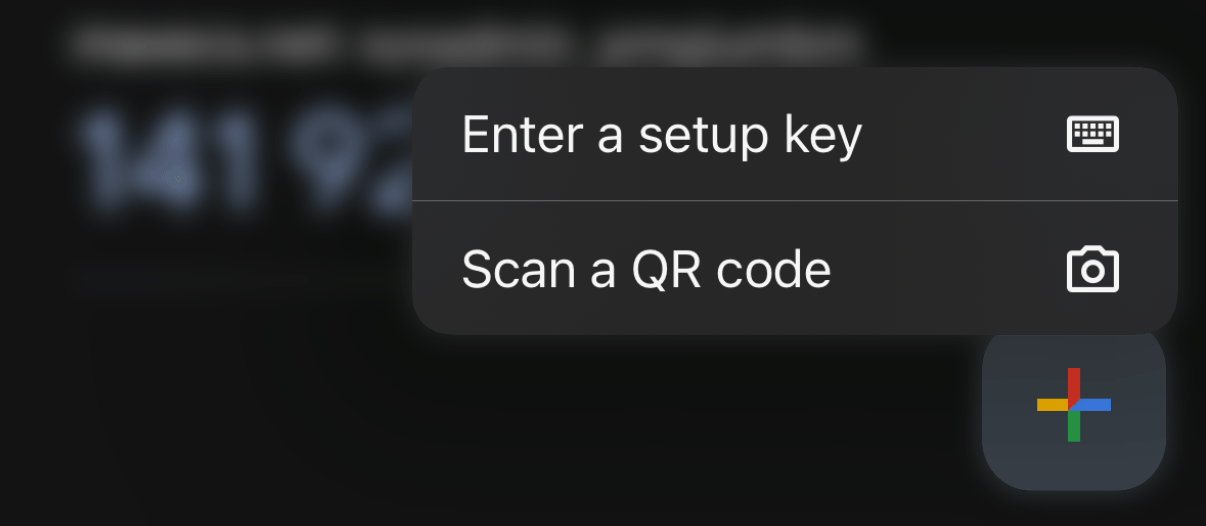
- Scan the QR code on the Wordfence 2FA setup screen. You will immediately be taken back to the main Google Authenticator screen. You will see your website name and directly below two sets of three numbers and a countdown timer to the right of the numbers.
- Enter these 6 numbers into the Wordfence 2FA setup screen into the box on the right side of the screen. Note, the numbers are only valid when they are blue. Once they start flashing red you will need to wait until a new set of numbers are shown on the screen.
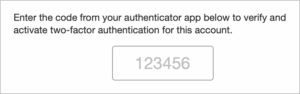
- That’s it! Now, every time you login to your website you will be asked to enter your username and password as you normally would, and then a new screen will appear asking for your 2FA code. Open the Google Authenticator app on your mobile device and enter the code.
- If you entered the correct code you will be taken to your website’s dashboard.